2 April 2014

How To Show Hidden Files And Folders In windows8


Show Hidden Files And Folders In windows8

In This Tutorial You learn How to show hidden files and folders temporary or permanently.
Some of the folder and files in windows are hidden so if we want to show them this tutorial helps you.


Steps :
First Open The folder Where Hidden Files and Folders On the left top you see a view button click on that then you see The hidden item box click on that and you hidden files and folders visible temporary.
Show Hidden Files And Folders In windows8
Now if you want show this folders permanently follow this steps
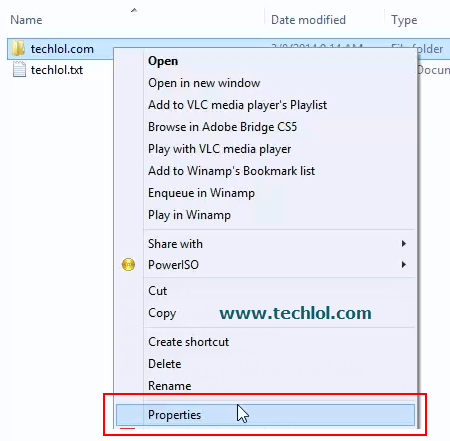
Select The Files or folder and right click Then click on properties
Show Hidden Files And Folders In windows8
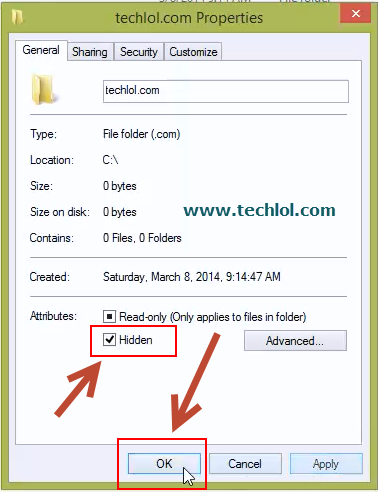
Unchecked The Hidden and Click on OK button

Show Hidden Files And Folders In windows8
Then A pop up open simple click on OK again And you files will be now visible permanently
Show Hidden Files And Folders In windows8
Thanks please comment and share the tutorial

How To Hide Files And Folders in Windows 8 and 8.1


Hide Files And Folders in Windows 8
In this tutorial You learn How to hide files and folders in windows 8 and windows 8.2.Its just 2 steps to do this.


First of all open right click on the folder or file which you want to hide

Hide Files And Folders in Windows 8
Then select the hidden option and press okey its done


Hide Files And Folders in Windows 8

Video tutorial

8 March 2014

How to create folder without name in windows

create folder without name in windows
Hello Friends Today I post a very cool trick to impress your friends This trick will allow you to make folder without any name. This trick works on any windows  operating system.


Steps to create a folder without name.
Step 1 :   Open the Folder where you want to make this and right click on blank screen               Right Click » New »Folder
create folder without name in windows

Step 2 : Then again Right click on folder » rename

create folder without name in windows step 2

Step 3 : Then type » Alt+255
create folder without name in windows step 3

Step 4 : And You will see your folder like image Press enter to make your folder without name


create folder without name in windows step 4
How to create folder without name in windows Video

27 February 2014

How To Invite all Friends To Facebook Page Code 2014

Hello my friends, when we create an event or page on facebook so we see an option to invite the friends for that one. But we face a problem we have to invite all friends one by one  and this take too much time, so I make a method to Invite all Facebook friends with just simple code.This code is working 100%.
Requirements:
  • Facebook account 
  • basic knowledge about browsers
Steps for Firefox:
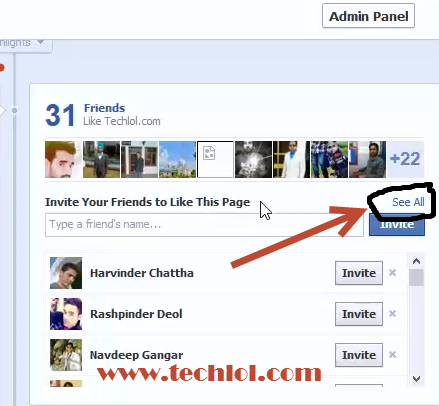
Step 1 : Open Your Facebook Page and Click on See All Near Invite box
Step 2 : When You Click on Popup And select Search All Friends And Scroll down 
Step 3 : When You Scrolled down Right click and Click on Inspect Element

Step 4 : Now you See a new Window Bottom of the screen open
  • Select Console 
  • Paste Code
var inputs = document.getElementsByClassName('uiButton _1sm'); for(var i=0; iinputs[i].click(); }
  • \  Press Enter

And Now You see Your Invitation Sending wait for some time When You see Invite Sent on All Contacts click close Congrats Your Invitation sent
Watch Video Tutorial Full


26 February 2014

How To Hide WhatsApp Last Seen Timestamp on iPhone

Hide WhatsApp Last Seen Timestamp on iPhone
Hello Friends WhatsApp has got to be one of our favourite and most used app. However, we have a question all the time – how do I hide my WhatsApp Last Seen Timestamp in Iphone. Finaly Now there is a way to Hide your whats app last seen timestamp.The latest version of WhatsApp 2.8.1 gives you the Option in the setting of whatsapp.
If this tutorial not works Then Please Update you whatsApp or wait For auto update.


Steps To Hide or disable WhatsApp “Last Seen Timestamp” on iPhone
Step 1: Open WhatsApp and tap on Settings from the menu (bottom)
Step 2: Tap on Chat Settings
Hide WhatsApp Last Seen Timestamp on iPhone
Step 3: Scroll down and tap on Advanced
Hide WhatsApp Last Seen Timestamp on iPhone
Step 4:  Switch OFF Last Seen Timestamp
If you Like Our Post Please Like us and share us

23 February 2014

Speedup Youtube Buffering Speed With YouTube DNS Servers

Increase Youtube Buffering Speed With Youtube dns


Hello Friends Welcome to Techlol.com We feel very irritate when we play YouTube video and its start buffering so don't worry in this tutorial I will tell you a easy and simple way to increase the YouTube  video buffering.In part-1 I explain ‘YouTube Feather’ If you don't know about Click here to read that first :  How To Increase Buffering Speed In YouTube Part-1
In This tutorial we will increase YouTube video speed with YouTube DNS So lets start Its also a good way to increase YouTube video speed.


Steps : 
1. First of all open Control Panel > Network and Internet > Network Connection

Increase Youtube Buffering Speed With Youtube dns

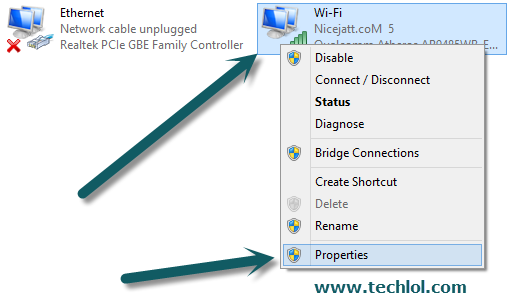
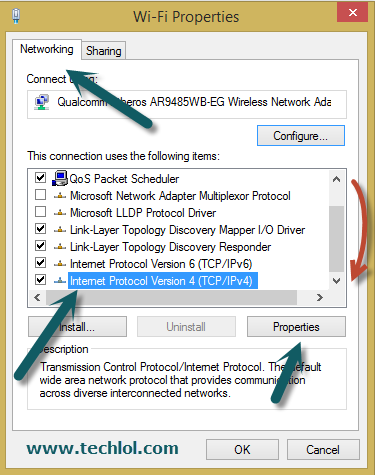
1.       Select the active connection I connect with WiFi Right Click on it and Click on Properties

2. Now Scroll down the scroll bar  select  Internet Protocol Version 4(TCP/Ipv4) and click on Properties then a new popup open


Increase Youtube Buffering Speed With Youtube dns
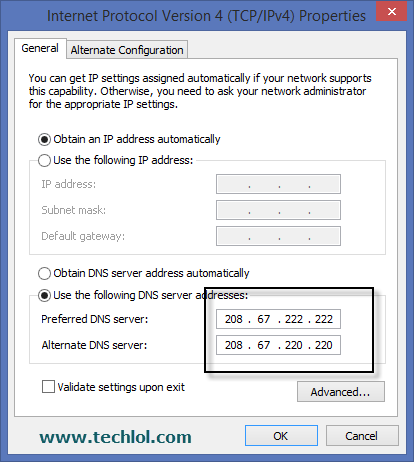
3. Now Select Use The Following DNS and Enter
Click on Use the following DNS server addresses
Set  Preferred DNS server to 208.67.222.222
Alternate DNS server to 208.67.220.220
Increase Youtube Buffering Speed With Youtube dns

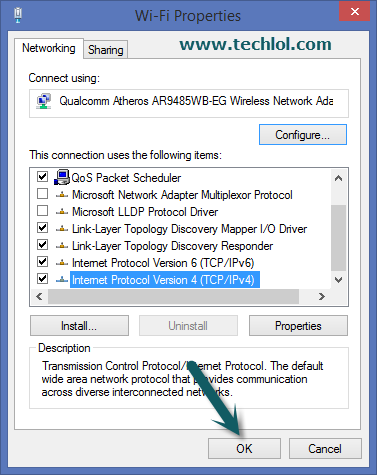
then click on ok
 

Increase Youtube Buffering Speed With Youtube dns
 Please like our Facebook page and subscribe our YouTube channel 

How To Increase Buffering Speed In With YouTube Feather


Increase Youtube Buffering Speed With Youtube dns


Hello Friends Welcome to Techlol.com You feel very irritate when we play YouTube video and its start buffering so don't worry in this tutorial i will tell you a easy and simple way to increase the YouTube  video buffering speed.IN this part we will discuss  YouTube's 'Feather' Its the best way to increase YouTube buffering speed using this method You won’t see too many comments. You won’t be able to like or dislike the video. You will get  5 suggested or related videos
Read Also : 

Steps :
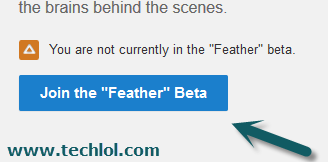
1. Open  https://www.youtube.com/feather_beta and click on Join The Feather" beta. 
Increase Youtube Buffering Speed With Youtube dns

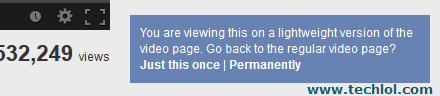
2. Now open any YouTube video and you will see the speed is increased  and you will see a new option in your YouTube Which i display in image 
Increase Youtube Buffering Speed With Youtube dns


Just this once : click on this link if you just want to see this video in light version
Permanently : Click on this link if you want this lighter version for YouTube permanently.

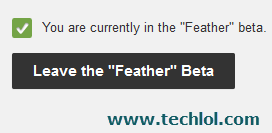
3. If You click on permanently and want to leave the ‘Youtube Feather’ again open  https://www.youtube.com/feather_beta
Increase Youtube Buffering Speed With Youtube dns


And click on Leave the “Feather” Beta
Read also : Speedup Youtube Buffering Speed With YouTube DNS Servers

30 October 2013

How to type the dollar sign for Nokia Lumia

 Hello friends The Lumia series is a line of smartphones and tablet computers designed and marketed by Nokia. Introduced in November 2011.
The function of nokia lumia is so nice but there are some hidden functions in the nokia lumia like : the $ sign is hidden in nokia lumia,After read this post its easy to use dollar sign in nokia lumia for you,


Step 1. When you type a text in text box you see a keyword on the bottom click on 123 
dollar sign for Nokia Lumia
Step 2 . After click on 123 you see Your currance sign I am in INDIA So here is rupee sign press this for a while and you see that some more currency signs click on the sign which you want and you see the $ sign is in your type box
dollar sign for Nokia Lumia
Thanks to read this post Please share my website name and like us on blog for daily updations

21 October 2013

Change windows update setting and speed up internet

Change windows update setting and speed up internet
How to change the windows update setting in your computer/laptop?

Hello friends, As you all would be aware of the fact that windows update is important for our windows, but it uses a large  part of our internet’s data.So, today I will tell you how to change the settings of your windows, which in turn will help you save a lot of your internet data.
You just have to do some steps to do this thing.
Steps : 
First of all you have to open your control panel if not found press window + r  and type control in input box press enter.After open the control panel 
Set Large icon  so its easy to find windows update setting
windows update setting
Now You have to click on change setting in the left side of your screen
windows update setting
Here we have 3 option
  1. Install updates automatically
  2. Download updates but let me choose whether to install them
  3. Check for updates But let me choose whether to download and install them
  4. Never check for updates

Now you have to check 4th option never check for updates and Also uncheck the recommended updates option.
windows update setting
When you select the option don't forgot to click on OK button on the right bottom side on the screen.
save windows update setting
This post is just for those who have slow internet connection or limited access plan if you have unlimted plan or high speed internet please update you windows automatically so that you can enjoy the new fetures.
Thanks.....
Don't forgot to Like our Facebook page

disable usb autorun autoplay in windows

disable usb autorun autoplay in windows
How to Disable usb to autorun or autoplay?

Hello Friends when you install new window or buy new laptop and attach any usb device with it,This will open Automatically.Its Harmful for your computer or laptop.So after read this post its easy to disable auto play or autorun automatically.Here is the steps to disable usb autorun/autoplay.

9 October 2013

Secure Your Facebook on public places with one time password

Secure your facebook in public places with Facebook one time password

Hello friends its very sad moment when somebody hacked our facebook account.but you can save your account with facebook one time password option its not very hard thing to learn its so easy you just have to remember some numbers.First of all don't use your real password in public places like school,college,friends,office pcs, because somebody attach keyloggers with your pc or install keylogger software.

How can i secure my facebook in public place
You can use a one-time password to log into your account anytime you feel uncomfortable entering your real password on Facebook (ex: in a library or internet cafe). Here's how:

  1. If you're in the US, send a text message to 32665 with the message otp. If you're not in the US, check out this list to see which mobile carriers support this feature and what number you should use.
  2. If your mobile number is already linked to your Facebook account, we'll reply with a unique, 8-character temporary password. If you haven't added this mobile number to your account, we'll send you an email with instructions on how to add it and collect your code.
  3. Once you get your code, just enter it in the password section of the Facebook login page.

Your one-time password will be valid for 20 minutes and can't be reused.


 Country   Carrier   Number

 Argentina


 Claro

 Telecom Personal


 325


 Algeria


 Djezzy

 Nedjma


 717

 5100


 Australia

 Telstra

 019832665


 Austria

 3

 13225


 Bahrain


 VIVA Bahrain

 Zain (Bahrain)


 88100

 94455


 Bolivia

 Tigo

 32665


 Chile

 Entel PCS

 32665


 Columbia

 Tigo

 32665


 Croatia

 Vasa mreza

 32665


 Czech Republic   

 O2

 9996209


 Egypt


 Etisalat

 Vodafone Egypt   

 Mobinil


 2474

 3265

 3265


 El Salvador

 Claro El Salvador

 32700


 Germany

 O2

 2665


 Great Britain


 O2

 Vodafone

 Cable & Wireless


 32665


 Greece

 WIND Hellas

 19333


 Guatemala

 Tigo

 32665


 Honduras


 Tigo

 Claro Honduras


 3223

 3000


 India


 Tata Indicom

 Webaroo

 Aircel India

 Videocon


 51555

 9232232665

 51555

 51555


 Indonesia


 3

 AXIS

 Telkomsel

 Bakrie Telecom (Esia)

 PT Excelcomindo Pratama


 32665


 Italy


 WIND Italy

 Vodafone (Italy)

 Noverca


 4850105

 3424860900   

 4891925


 Ireland

 Meteor

 51325


 Jordan


 Umniah

 Zain (Jordan)


 98010

 90906


 Kuwait


 Zain


 32665


 Lebanon


 MTC Touch Lebanon

 Alfa Telecommunications  


 1191

 1017


 Lithuania

 Omnitel

 1556


 Nicaragua

 Claro Nicaragua

 32740


 New Zealand

 New Zealand Telecom

 3223


 Macedonia


 Vip operator

 DiGi


 32665

 2325


 Malaysia

 Celcom

 32665


 Maldives


 Wataniya Telecom Maldives  

 Dhiraagu


 32665


 Mexico

 Promonte

 14777


 Pakistan


 Telenor

 Warid Telecom


 32665


 Peru

 Movistar

 326


 Paraguay


 Claro

 Tigo

 Personal


 325


 Philippines


 SMART

 Globe Telecom


 3404

 2933


 Poland

 Plus Poland

 2665


 Portugal


 TMN

 Optimus

 Vodafone


 32665

 12940

 12400


 Romania

 Vodafone Romania

 32665


 Russia


 Beeline

 МТС Россия

 Megafon

 Tele2


 1006


 Saudi Arabia


 STC

 Mobily

 Zain


 86677

 606050

 710700


 Serbia


 Telekom Srbija

 Telenor


 32665


 Singapore

 Starhub

 0905


 South Africa


 MTN

 Cell C

 Vodacom


 13999


 Sri Lanka


 Dialog Telekom

 Tigo Sri Lanka


 32665


 Sweden

 3

 3900


 Thailand

 AIS

 42665


 Tunisia

 Tunisiana

 873434


 Turkey

 Vodafone

 3223


 United Arab Emirates  


 DU

 Etisalat


 3220

 2474


 Uruguay

 Claro

 325


 Qatar

 Qtel

 92255